What SpecSmith does, and why
A backtest is only as accurate as the contract it trades. If StrategyQuant X (SQX) believes a symbol has a tick size, a point value, a minimum stop distance, a swap, a commission or a trading session that differs from what your broker’s MetaTrader 5 (MT5) terminal reports, the same strategy costs one thing in the tester and another on the live account. Entering these by hand, symbol by symbol, is slow and easy to get wrong.
SpecSmith reads what your MT5 terminal reports for every symbol, compares it with an SQX broker profile, and shows you the differences row by row. You tick the rows you want, apply them, and can undo the apply. It can also create an entire new broker profile from the terminal’s symbols.
Where it lives
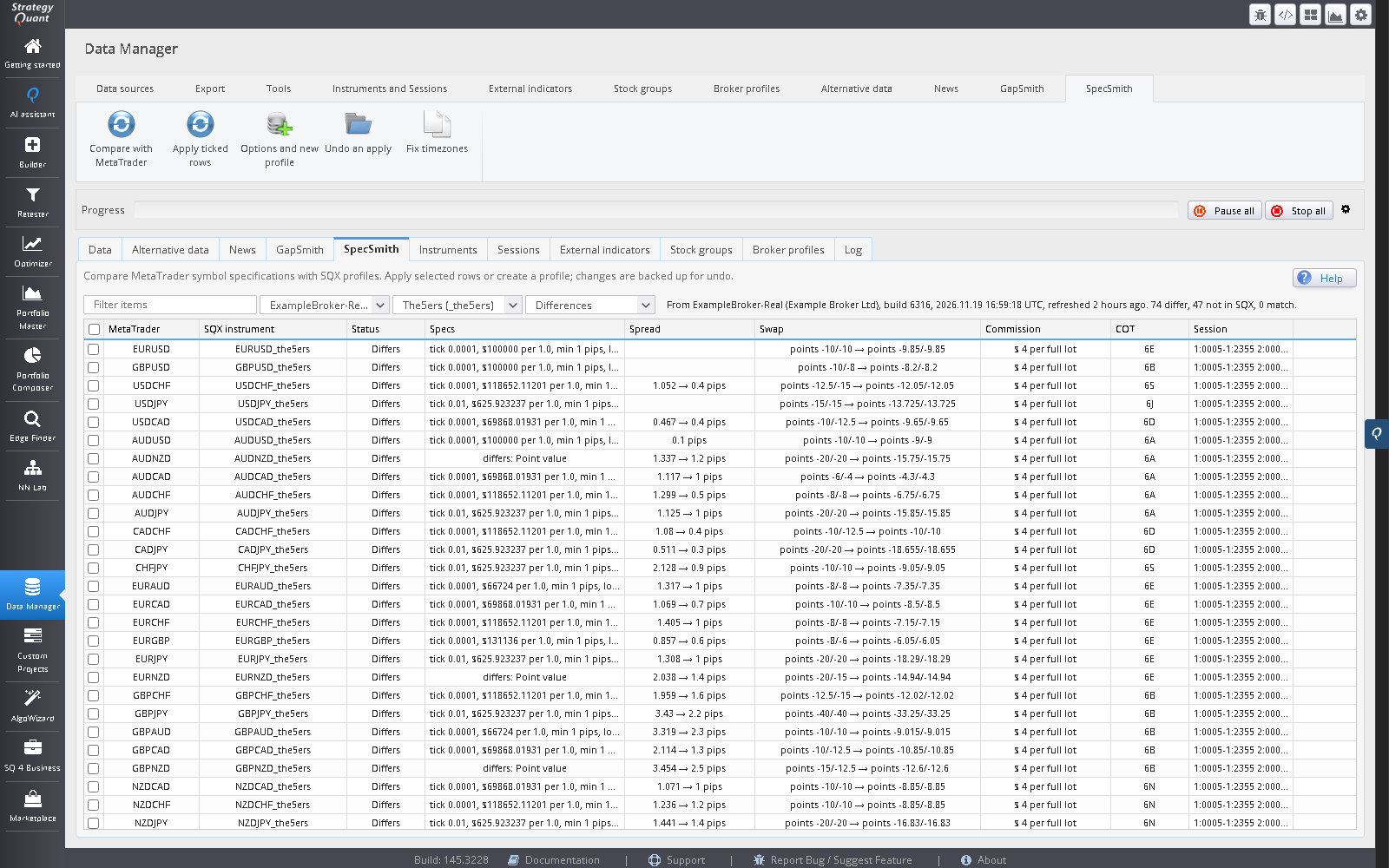
SpecSmith is a Data Manager tab, right of GapSmith, with its own ribbon tab of buttons.
Data Manager → SpecSmith
The ribbon buttons are Compare with MetaTrader, Apply ticked rows, Options and new profile and Undo an apply, with Fix timezones as a fifth button. They appear in the Broker profiles group, which opens by itself when you select the tab. If the tab is not there, the plugin did not register: restart SQX.
Step 1: export from MetaTrader 5
SpecSmith installs a read-only MT5 service, AWSpecFeed, that exports your broker’s symbol data for you. It places no order and changes no setting. It writes two CSV files, once when the terminal has connected and then once a day, so there is no script to run by hand. To measure the typical spread it asks the terminal for the last 90 days of M5 bars of the symbols in Market Watch, which the terminal may have to request from your broker.
Open the broker’s terminal
Use the terminal that is logged in to the broker and server whose symbols you want to match. A demo and a live account of the same broker usually report the same specifications; a different broker does not.
Let the service run
In the installer, the option to keep SpecSmith’s symbol data up to date is ticked by default; it registers the service so that MT5 starts it by itself with the terminal. It waits for the terminal to connect, writes its files, and refreshes them once a day and whenever the server or its list of symbols changes. In Navigator, under Services, AWSpecFeed shows whether it is running; right-click it and choose Start if it is not.
If AWSpecFeed is not listed under Services, or you left the option unticked, run the installer again with the option ticked, or add it in MT5: right-click Services, choose Add Service, pick AWSpecFeed and start it. If MT5 was open while you installed, the installer could not register the service: close MT5 and open it again (or run the installer again with MT5 closed).
Find the files
They are
specs_<server>.csvandsessions_<server>.csvin MT5’s common data folder,Common\Files\AWSpecs(shared by every MT5 terminal on the computer, so SQX finds them without any setting), with a header recording the broker, the server, the account currency, the terminal build and the server’s UTC offset.
Manual export. If the service is not running, drag the script AWSpecExport from Navigator, under Scripts, onto any chart. It waits up to a minute for the terminal to connect, then writes the same two files.
Exact commissions need MetaTrader 5 build 6060 or later (the SymbolInfoCommissions function). On an older terminal the export still works, but commissions are left out.
Step 2: compare
On the tab’s toolbar, choose the MetaTrader export (one entry per server, with its symbol count) and the SQX broker profile to compare against, The comparison runs by itself when you open the tab and whenever you change either list; Compare with MetaTrader in the ribbon repeats it. Choosing New broker profile... in the profile list opens the options dialog to create one. The Show list picks Differences, Not in SQX, Matching or All, and it is never changed for you: with nothing to show, the grid says why. The grid has one row per MetaTrader symbol, with the values both sides hold (a column that differs shows SQX → MetaTrader):
| Column | Meaning |
|---|---|
| MetaTrader | The symbol name in the terminal. |
| SQX instrument | The instrument it maps to in the chosen broker profile, if there is one. |
| Status | Differs, Matches, or Not in SQX (an instrument that could be created). |
| Specs | Tick size, tick step, point value, minimum distance, order size step, decimals, description. |
| Spread | Off by default; see below. |
| Swap | The long and short swap and its type. |
| Commission | The commission SQX would charge, with a note if MT5 reports something SQX cannot express. |
| COT | The CFTC contract SQX’s instrument COT field takes. A forex pair uses the non-dollar currency’s future (EURUSD gives 6E, USDJPY gives 6J); a cross uses its base currency and says so; metals, crypto, the main indices, oil and gas map by name. A symbol with no clear futures market behind it is left empty, and an existing COT is never cleared. |
| Session | The trading hours, if they differ. |
The search box filters the grid. Double-click a row to see the old and new value of every field, with its unit. Nothing is written by comparing.
Step 3: apply
Tick the rows you want and press Apply ticked rows. The dialog states how many changes in how many instruments it will write, and in which broker profile, and asks you to confirm. Two choices: update the existing instruments of the chosen profile (Undo restores them), or write them into a new broker profile with a name and postfix of your own, which leaves the existing profile untouched. What kinds of change are written (specs, swap, commission, session, spread) is set in the options dialog. Before anything is written, the current values of every affected row are saved to a backup file under user\extend\SpecSmith\backups.
The changes take effect in SQX at once, with no restart. Projects you have already created keep their own copy of the values until you redeploy them.
Undo
Undo an apply lists the backups, newest first. Choosing one puts the old values back, and removes any instrument, session or broker profile that apply created.
Options and new profiles
| Option | What it does |
|---|---|
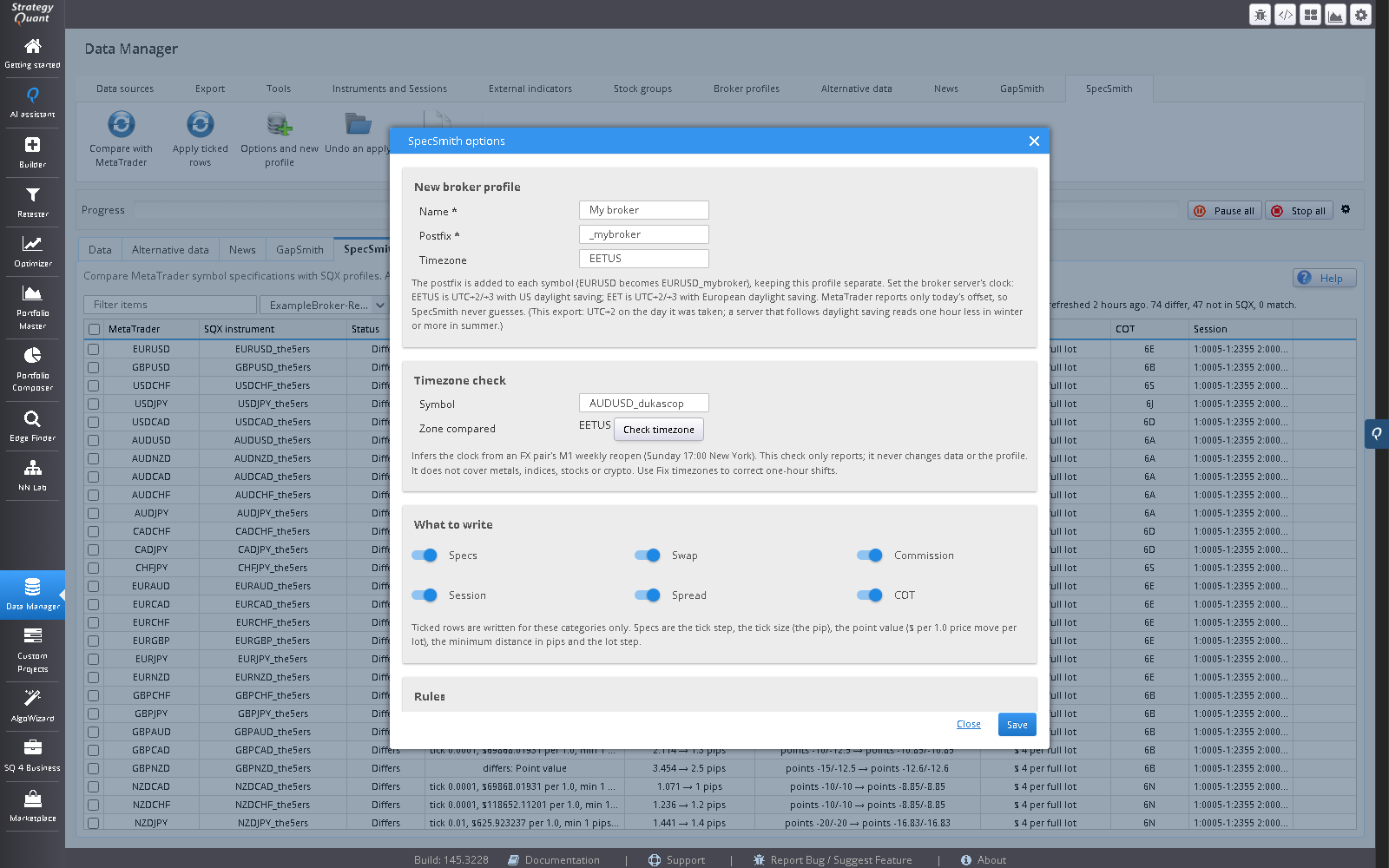
| New broker profile | Creates a new SQX broker profile from the export, with a name and a postfix of your choosing, and an instrument for every MetaTrader symbol it can map. Pick Also set this profile’s timezone to record the broker’s clock (SpecSmith never guesses it and never changes it for you). The Timezone check in the same dialog tests the value you type against the weekly reopening of a currency pair’s M1 history; see Checking the timezone. The offset the export header records is today’s only, so it is shown as a one-day cross-check, not as proof. |
| Never earn positive swap | On by default. SQX has no swap history, so a positive swap in a backtest is optimism, not data. |
| Long and short swap | Equal on both sides, the average, by default. Many brokers charge different swap for long and short, and the builder can favour the cheaper side for a reason that has nothing to do with the market. The average writes the mean of the two for both (a side that earns carry counts as zero first, see above): the cost per trade when long and short are used equally, and the smallest misstatement either side can suffer. For example -25 and -60 become -42.5 on both sides, where the average is wrong by 17.5 points either way and the worse side would be wrong by 35 on one of them. The worse side writes the larger charge for both (-60): the strictest choice, which penalises the cheaper side. Each side as MetaTrader reports it keeps the two figures apart. Rounding up (next row) is applied after. |
| Round swap and spread up to the worse side | On by default. MetaTrader reports today’s swap and spread, which move from day to day. Each charge is rounded up to the next step of a 1, 1.25, 1.5, 2, 2.5, 3, 4, 5, 6, 8, 10 ladder (times a power of ten), so a backtest is never kinder than the broker is likely to be: −8.7 and −9.8 both become −10, −3.2 becomes −4. The step is relative, so it adds at most about a third (1.5 becomes 2, 3 becomes 4, 6 becomes 8) and works the same for forex points, index swap in money and spread in pips. Commission is never rounded. |
| What to write | Tick boxes for Specs, Swap, Commission, Session, Spread and COT. |
| Spread | Written by default, from the export; choose Leave as it is in Options to keep the spread your profile holds. The export carries a typical spread for each symbol: the median of the spread MetaTrader recorded on each M5 bar over the last 90 days. Only bars inside the symbol’s own trading sessions count, from 30 minutes after a session opens to 15 minutes before it closes (which leaves out a rollover break), and not the first two hours after the weekly open; a symbol that trades round the clock keeps its weekends. A symbol that reports no session times counts every bar, and the median absorbs a rollover spike. It is measured for every symbol the broker offers: one that is not in Market Watch is added for the few seconds it takes to read and then removed again. On a raw-spread account, where most bars read zero because the cost is the commission, the bars say nothing, so the service reads the last 3,000 ticks of that symbol (one small request, never months of ticks) and takes the median of ask minus bid; if the terminal holds no ticks for it, SpecSmith uses the spread of the moment of the export instead. A symbol that measures no spread at all, such as a commission-only raw-spread symbol, gets a floor of 0.1 pip, so a test never runs with a free spread; a later Apply writes it again unless Spread is set to Leave as it is. |
| Show advanced | Opens the symbol ending to strip from MetaTrader names. |
How values are converted
- Spread and minimum distance are written in SQX pips: points × the point size (10−digits) ÷ the tick size.
- Tick size is the tick step, times ten only for three- and five-digit forex, which is how SQX defines a pip.
- Point value is the MT5 tick value divided by the tick size, so the label reads dollars per 1.0 move, per lot.
- Swap stays in raw MT5 points, as SQX’s swap type expects.
- Commission is read from MT5’s commission rules and written as SQX’s size-based or percentage-based method. SQX charges a commission once, at the open of a trade, so a broker that charges on entry and on exit has to be entered at the round-turn total. The option Commission on entry and exit decides: by default SpecSmith follows your closed trades (the export counts, per symbol, the entry and exit deals of the connected account and how many carried a commission) and falls back to the broker’s rule where no closed trade on that symbol carried a commission (the whole history of the account is counted, so a commission that changed long ago can mislead; choose the broker’s rule then); you can also follow the broker’s rule or enter the per-side figure as reported. The row’s detail shows the deals counted.
Checking the timezone
MetaTrader 5 reports only today’s offset from UTC, so it cannot say which clock your broker’s history was recorded on. The Timezone check works from the history instead. It sits in the Options and new profile dialog, below the timezone field. It only reports: it never changes the zone you typed, the profile or the data. It reads the whole history of the symbol, so on a large one it takes several minutes (about 3 to 4 minutes on a symbol with 8.7 million M1 rows); the dialog stays open while it works.
Pick a currency pair
The Symbol field lists the M1 symbols in the Data Manager; a major pair is preselected when there is one.
Press Check timezone
Zone compared shows the zone the check will test: the one typed in the new-profile fields, or the existing profile’s. SpecSmith reads that symbol’s history and compares.
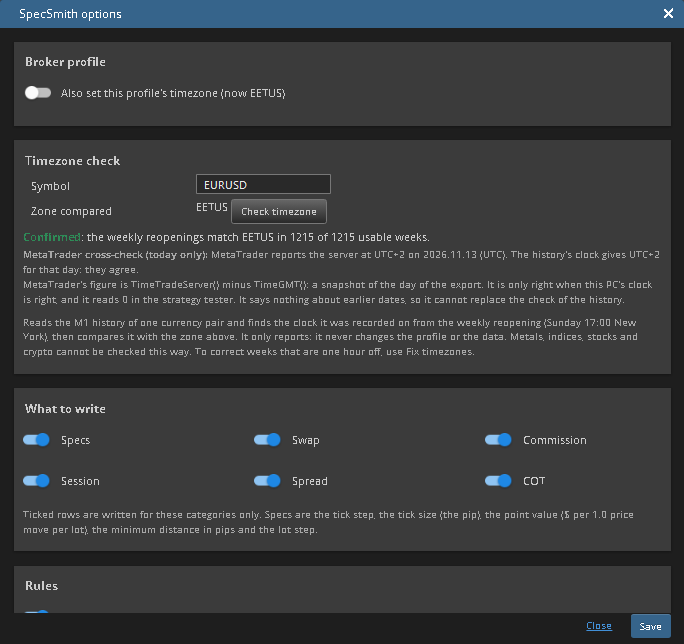
Read the verdict
A headline, a sentence saying why, and, when it applies, the weeks that do not fit.
How it decides
Foreign-exchange markets reopen after the weekend on Sunday at 17:00 New York time and close on Friday at 17:00 New York time, all year, whatever the broker’s clock does. That is the one assumption the check rests on. Bars are stored as wall-clock readings in the symbol’s zone, so the distance between a week’s first bar and 17:00 New York is the broker clock’s offset from UTC in that week. The week’s closing bar has to give the same whole hour, or the week is not used (holidays, missing data). The weekly offsets are then fitted against three kinds of clock: a fixed offset, a clock that follows US daylight saving (EETUS) and one that follows European daylight saving (EET). The zone you typed is accepted as EETUS, EET, UTC, UTC+hh:mm or a region name such as Europe/Athens. The check needs at least 20 weekend reopenings and a stable weekly pattern; a first tick up to a few minutes late is allowed.
| Verdict | Shown as | What it means |
|---|---|---|
| CONFIRMED | Confirmed | The weekly reopenings fit the zone you typed in nearly every usable week (97% or more). |
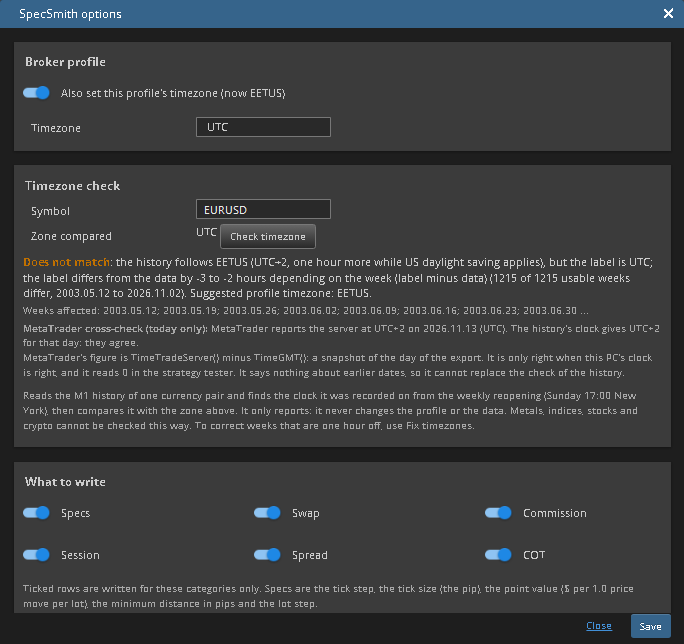
| MISMATCH | Does not match | The history follows a different clock from your label. The result names the clock it looks like, when it can, and the weeks that differ. A label that is wrong by a whole hour all year ends up here. |
| DST-SHIFTED | Daylight-saving shifted weeks | Your zone fits except in weeks that are exactly one hour away. That is the signature of a feed whose clock changes daylight saving on another date than the zone you typed. The weeks are listed; Fix timezones can write a corrected copy. |
| CANNOT VERIFY | Cannot verify | The data cannot decide, and the result says why: not a currency pair (metals, indices, stocks and crypto have no fixed weekly reopening), fewer than 20 weekend reopenings, no stable whole-hour weekly pattern, or a zone text the check does not understand. Nothing is guessed. |
The live offset is a cross-check for today only
When the export carries a server offset, the result adds a MetaTrader cross-check (today only): the offset the terminal reported on the day of the export, next to what the history’s clock gives for that day, and whether they agree. Treat it as a second opinion about one day, never as the verdict. MetaTrader’s figure is the server time minus GMT at the moment of the export; it is right only when this PC’s clock is right, it reads 0 in the strategy tester, and it says nothing about earlier dates, so it cannot confirm daylight-saving history or a different data feed’s clock. If the two differ, check this PC’s clock and run the export again on a live chart.
The check reports a verdict and nothing else. It does not edit the timezone field, the broker profile or the price history, and applying the profile never depends on its result. If the verdict is a mismatch, you decide what to change.
Fix timezones
The Fix timezones button is separate from comparing specifications. It works on M1 history already in the Data Manager, not on the MetaTrader export, and it does not set a broker profile’s timezone.
Foreign-exchange markets reopen after the weekend at one fixed New York time. A feed recorded on a clock that changes daylight saving a week before or after the zone it is labelled with reopens one hour early or late in those weeks only. The tab converts each week’s first bar under the symbol’s declared zone and looks at the minute it lands on. When at least 80% of the weeks (and at least 20 weeks) agree on one reopening minute, that minute is the reference, and weeks that are exactly one hour away from it are candidates.
Check
Tick symbols and press Check ticked. Nothing is written. Each check reads the symbol’s whole history and can take several minutes on a large symbol (about 3 to 4 minutes on one with 8.7 million M1 rows); with several symbols ticked it takes correspondingly longer. A symbol with no stable weekly reopening (indices, stocks, futures) or an unresolved zone is reported as such and gets no fix.
Fix
Press Fix ticked. Fix looks for weeks that are one hour off. If it finds them, it writes a corrected copy; if it finds none, it reports the data as consistent and writes nothing. A week is moved only when its first bar and its last bar are both one hour off in the same direction, so a feed that merely lost its first hour is left alone, as is the final week of the history. By default (Create a copy) the tab writes a corrected copy named
<symbol>_tzfixand imports it; the original symbol is not changed. Overwrite the symbol with its corrected history is an explicit choice, and the tab asks you to confirm before it runs: it replaces the stored history (to go back, wipe the symbol’s data in the Data Manager, which keeps the symbol, and import the original file again), strategies already built on the symbol will see different data, and it stays unavailable until you tick I understand, overwrite the original. The corrected CSV and a log of the moved weeks are kept underuser\extend\SpecSmith\clockfix. If you used Fix gaps on the symbol, run Fix gaps again afterwards.
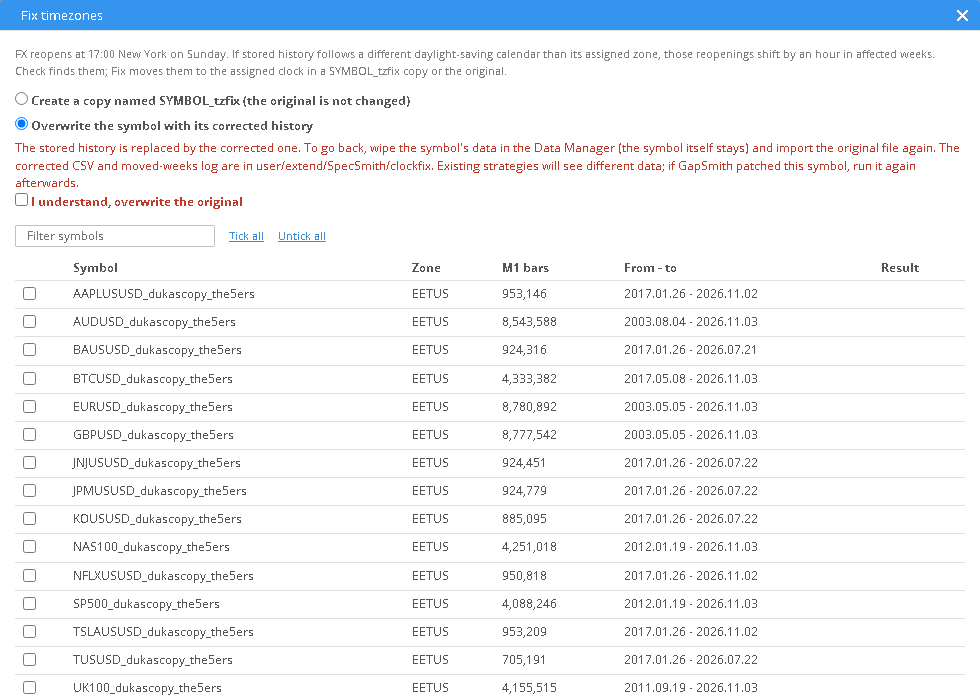
A fix holds its symbol from the moment you start it (symbols queued behind another are held too) until the import has landed. Closing the dialog, switching tabs or reloading the page does not release it: the symbol shows as being fixed, and a second fix or a gap fill on it is refused. While SQX’s grid is running on this machine the fix is also listed in the Grid engine overview under the group AlphasWorth. Stopping it there ends the page’s wait and releases the symbol; a file already being written, or an import SQX has already started, is not interrupted. A fix nobody has touched for 20 minutes is released.
What it cannot see: it compares the weeks with each other, not with 17:00 New York. A label that is wrong by a whole hour in every week of the year looks consistent to it and is not detected; the Timezone check above compares with 17:00 New York and does catch that case. Weeks off by anything other than one hour (holidays, late opens) are never touched. It does not fill gaps; that is GapSmith.
Limits
- It reads a terminal’s export; it does not need the terminal running while you apply, but the export must come from the broker you trade, and it is only as fresh as the last time the service ran.
- The point value of a symbol whose profit currency is not your account currency moves with the exchange rate. SpecSmith reports it only when it is more than 10% off.
- Stock interest-based swap modes have no SQX equivalent and are left alone.
- When the market is closed, MT5 can report unconverted tick values for CFD symbols; those are skipped instead of being written.
- The typical spread is the spread MetaTrader stores on each M5 bar: a typical value, not a quote-by-quote measure. On a floating-spread symbol it can read lower than the spread you pay at busy moments, so keep Round swap and spread up to the worse side on.
- It sets what SQX stores about an instrument. It does not download price history.
- The timezone check reads one currency pair’s history and assumes a 17:00 New York weekly reopening, so its verdict applies to the symbol checked. It does not run on metals, indices, stocks or crypto, and it never changes your setting. The offset the export records is today’s only.
Troubleshooting
| Message or symptom | Cause and fix |
|---|---|
| No SpecSmith tab | Restart SQX after installing. Check the licence covers SpecSmith. |
| No export is listed | Open MT5 with the terminal connected to your broker and wait a minute or two: the AWSpecFeed service writes the files when it connects. If it is not running, start it under Navigator, Services, or run the AWSpecExport script once. The files must be in Common\Files\AWSpecs. |
| Commission columns are empty | The terminal is older than build 6060, or the broker publishes no commission rules. |
| A name with an apostrophe fails | SQX stores the text in its database as typed. SpecSmith removes apostrophes from descriptions for you. |
| I applied the wrong rows | Press Undo an apply and choose the backup. |