Reads your terminal, changes nothing in it
A read-only MetaTrader 5 script writes two CSV files with every symbol’s specification, swap, commission rules and trading sessions.
StrategyQuant X holds its own description of every instrument: tick size, point value, minimum stop distance, swap, commission and trading sessions. If that differs from what your broker’s MetaTrader 5 terminal reports, the same strategy costs one thing in the tester and another on the account. SpecSmith reads what the terminal reports, lists every difference, and writes the rows you tick. It can build a whole new broker profile from the terminal, and it can undo what it wrote.
A read-only MetaTrader 5 script writes two CSV files with every symbol’s specification, swap, commission rules and trading sessions.
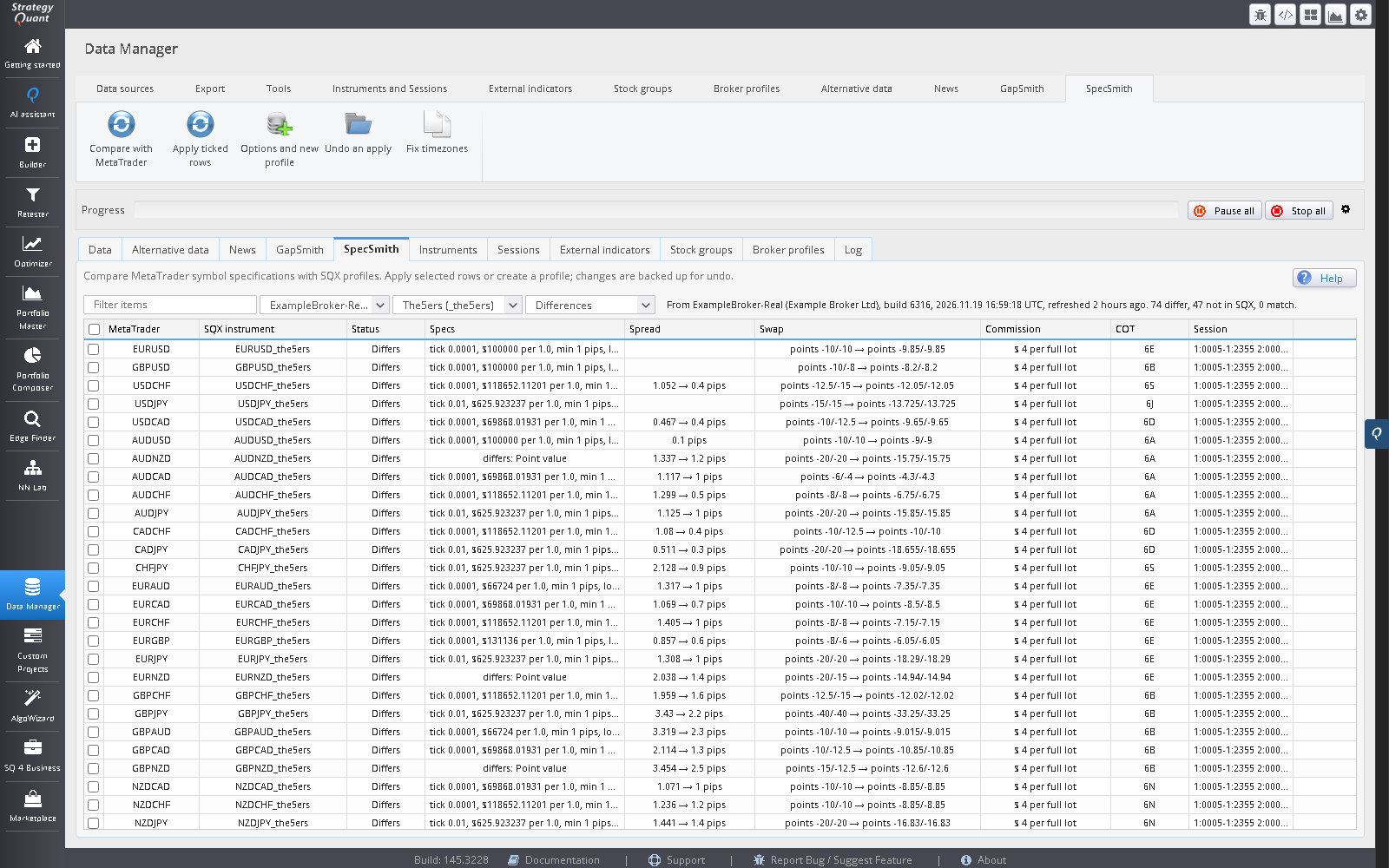
A native Data Manager grid lists each symbol with what differs in specs, swap, commission and session. Double-click a row for the old and new value of every field, with its unit.
Tick the rows and apply them live with no restart. The values they replace are saved first. Undo puts them back and removes anything the apply created.
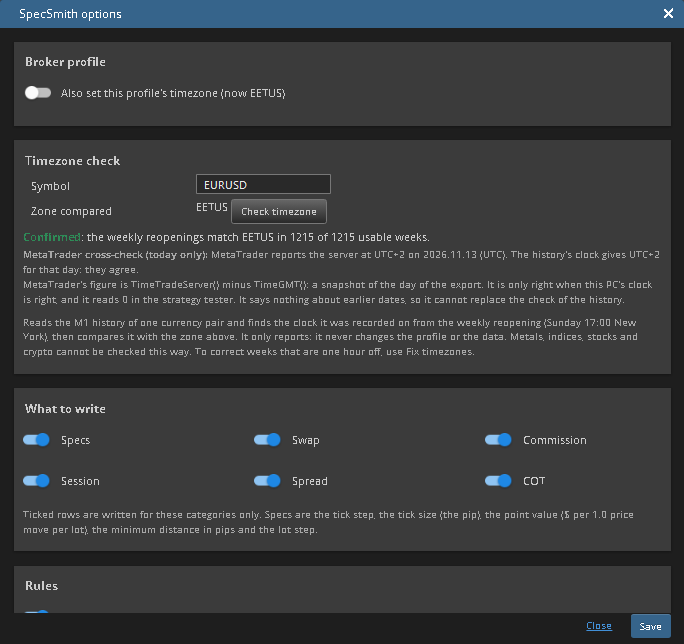
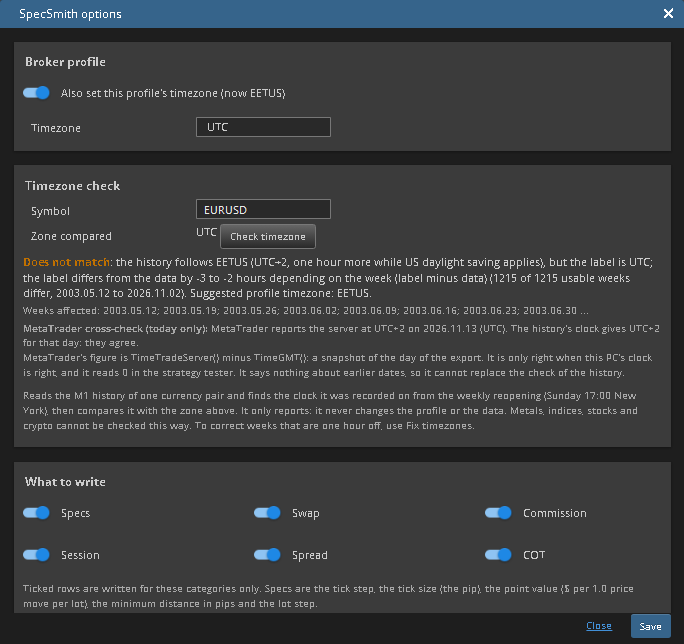
MetaTrader 5 reports only today’s offset from UTC, which says nothing about the clock your broker’s history was recorded on. The timezone check reads the M1 history of one currency pair instead. Foreign-exchange markets reopen on Sunday at 17:00 New York time all year, so the distance between a week’s first bar and that instant is the broker clock’s offset in that week. SpecSmith fits those weekly offsets against your zone and gives one of four verdicts:
The check assumes the 17:00 New York reopening and works on currency pairs only. The terminal’s own offset is shown as a cross-check for the day of the export, not as proof. The check only reports: it never changes your timezone setting, the profile or the data.
Drag the AWSpecExport script onto a chart of the terminal logged in to your broker. It writes specs_<server>.csv and sessions_<server>.csv to Common\Files\AWSpecs, which SQX finds without any setting.
Open the SpecSmith tab in the Data Manager, choose the export and a broker profile (or New broker profile), and press Compare with MetaTrader.
Tick the rows you want and press Apply ticked rows. A backup is saved first.
Undo an apply lists the backups, newest first. Choosing one restores the old values.
Edge Finder reads spread, slippage, commission, swap and the trading session from the Data tab, and applies them: entries outside the session are not trades, and a time window is trimmed to the session. The Builder’s backtest uses the instrument’s description as well.
SpecSmith corrects the contract and GapSmith repairs the minute data. Edge Finder, the Builder and the retest then run on the same description of the instrument. More: the workflow, data hygiene, and when SQX and MT5 cost different amounts.
No. The script only reads symbol and session information and writes two CSV files.
Press Undo an apply and choose the backup. It restores the old values and removes any instrument, session or broker profile that apply created.
Only if you tick “Also set this profile’s timezone” when creating a new profile, and you supply the value. It never guesses it and never changes it for you. You can test what you typed with the timezone check below (it reports only); MetaTrader reports just today’s UTC offset, which says nothing about daylight-saving history.
Open Options and new profile and use the Timezone check: pick a currency pair with M1 history and press Check timezone. It compares the weekly reopening in that history with 17:00 New York, as seen through your zone, and answers CONFIRMED, MISMATCH, DST-SHIFTED or CANNOT VERIFY. It cannot check metals, indices, stocks or crypto, and it never changes your setting. The offset MetaTrader reports is shown only as a cross-check for the day of the export.
It checks M1 history that is already in the Data Manager. Forex markets reopen after the weekend at one fixed New York time, so when a feed’s clock changes daylight saving a week before or after its label, those weeks reopen an hour early or late. The tab finds weeks that are exactly one hour away from the rest, confirms the weekly close shows the same shift, and, only when it finds such weeks, writes a corrected copy named _tzfix. If it finds none, it reports the data as consistent and writes nothing. By default the original is not changed; an Overwrite the symbol option exists, but it asks you to confirm and cannot be undone. Each check reads the whole history and can take several minutes on a large symbol. It compares weeks with each other, so a label wrong by a whole hour all year is not detected by this button (the timezone check compares with 17:00 New York and does catch it), and it does not apply to symbols without a stable weekly reopening, such as indices.
Yes. The comparison uses the typical spread over the last 90 days from the export. If you set the spread in your SQX profile on purpose, choose “Leave as it is” in Options and it is not touched. Symbols with no spread (commission only) are left alone.
A demo and a live account of the same broker usually report the same specifications; a different broker does not. Export from the terminal logged in to the broker and server whose symbols you trade.
No. The export must come from the broker you trade, but the terminal does not need to be running while you apply.
No. For missing minutes, see GapSmith.
Trading leveraged instruments carries a high risk of loss. Software output is not investment advice and says nothing about future results. Validate every strategy yourself before risking capital.