What NN Lab is, and what it is not
NN Lab trains neural networks inside StrategyQuant X. The result is an ordinary indicator: a number between −1 and +1 (the network’s probability of a turn up minus its probability of a turn down) that the Builder can use in a rule, and that a compiled MetaTrader 5 indicator reads from the very same weights.
It is deliberately narrow. NN Lab is a GUI over a file format: it trains models and writes them. It never scores a strategy, never sees a trade and has no opinion about profit. It optimises prediction error; SQX optimises trading performance. Judge a model by the strategies SQX builds on it.
Because the numerical work (features, normalisation, labels, training, the file format and the MT5 model writer) lives in one engine that the indicator blocks also run, the model is trained on the exact definition of “RSI at lag 2” that the block later evaluates. A trainer with its own copy would train on one definition and trade on another, and the symptom would look like ordinary overfitting.
Where it lives and how it is laid out
NN Lab is a tab in SQX’s left navigation. It sits on the same project and task as the rest of SQX, so the settings you see are stored in the task and persist with it. Across the top are a progress panel (Start and Stop, a progress bar, the task name, and counts of runs completed, failed, queued and cancelled) and a settings summary. The tabs are:
- Autopilot
- One click runs the tuning chain (rank features, prune, tune labels, topology and training).
- Data
- SQX’s own Data tab: symbol(s), timeframe, date range, and Data range parts for the reserved bars.
- NN Features
- The inputs: built-in features, SQX indicator blocks and, when installed, alternative-data columns, with a feature ranking.
- Topology
- The network family and shape, window length and normalisation.
- Labels
- What the network is asked to predict.
- Training
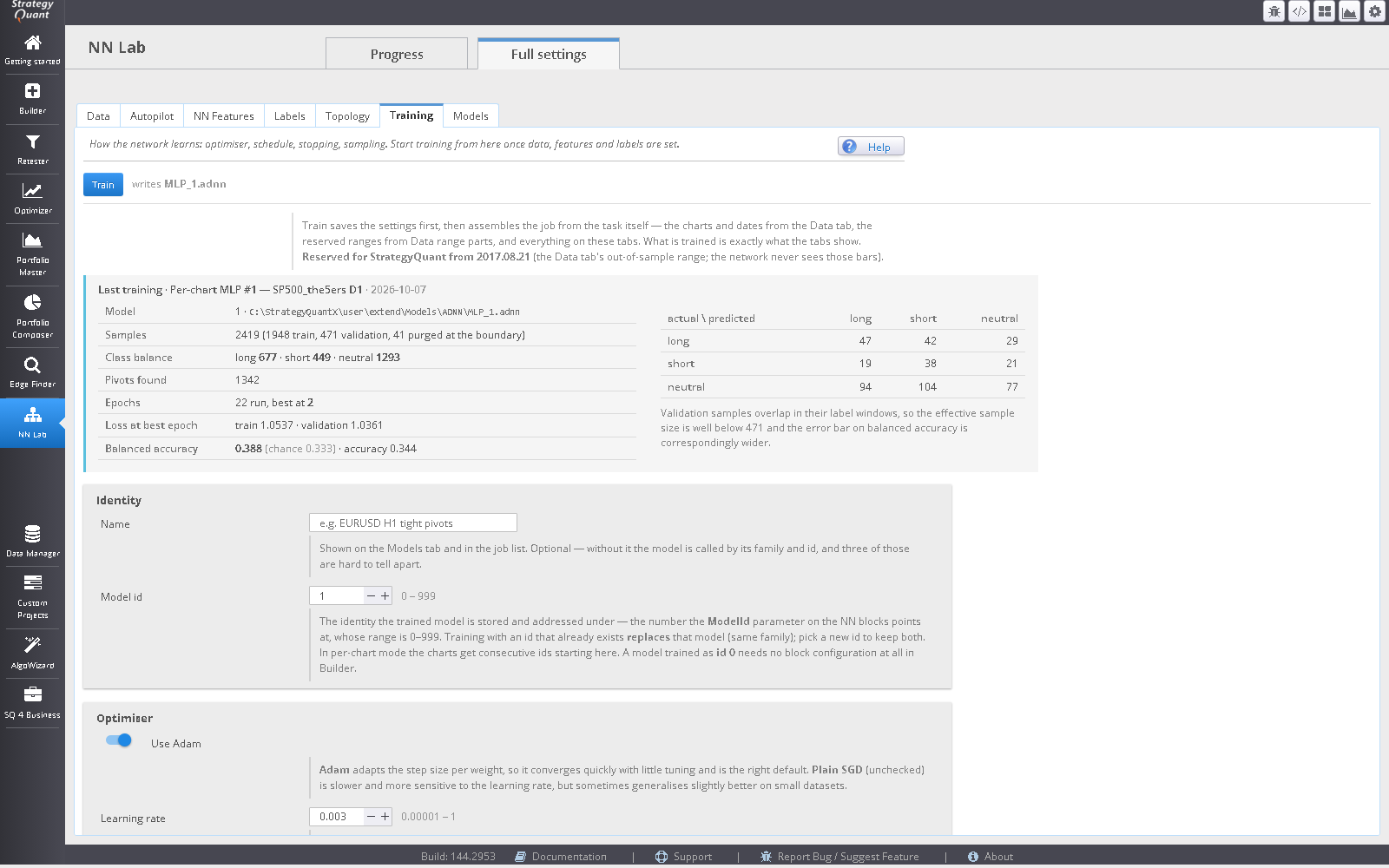
- The training method, stopping rules, sampling, model identity, and the Train button with its results.
- Signals
- A chart of the bars a trained model calls long or short.
- Models
- Every trained model, MetaTrader 5 deployment, jobs and search reports.
Your first model, step by step
Set the data
On Data pick a symbol, a timeframe and a date range. Check the Data quality banner (below) for gaps.
Reserve your out-of-sample bars
Under Data range parts mark the range you want kept for SQX’s out-of-sample validation. The network will never see it. If you set none, the last 25% of the data is reserved automatically and the Training tab says so.
Choose inputs
On NN Features tick the built-in features and any indicator blocks you want. Nothing ticked trains on the whole built-in feature set.
Leave labels and topology at their defaults
Start with the MLP family as the baseline.
Train
On Training press Train. Rprop is the default method and needs no learning rate. Watch the result: samples, class balance, pivots found, loss and balanced accuracy.
Deploy and use
On Models, pick a project, a Build task and a model in the StrategyQuant X Builder panel and press Deploy to Builder: it ticks the NN blocks on that task’s Building blocks page and sets their
ModelId(the model’s ID, the Id column) as a fixed value. Press Deploy to MetaTrader 5 to copy the model for the terminal. A model you have just trained works at once: no sync, no compile and no restart (see Model IDs and names).
The data split, and the one mistake that matters
|<----- NN train ----->|<- purge ->|<- NN val ->|<---- reserved for SQX OOS --->|The reserved tail is never trained on and never validated on: it is dropped, not scored. If the network sees bars that later fall inside an SQX build’s out-of-sample window, every strategy that build produces is validated on data the network has memorised, the report looks excellent, and nothing in the output looks wrong. A number computed on the reserved tail would eventually be optimised against and would then no longer be out-of-sample for the build it was reserved for, which is why NN Lab does not compute one.
The purge gap is the same idea at a smaller scale. A sample at time t whose label resolves at t + horizon has seen past the split, so it is dropped from training, and the first validation samples are dropped because their feature windows overlap training bars. The network never trains on, and is never scored on, any range that Data range parts marks as out-of-sample or as in-sample validation. Those ranges are read from the task at the moment training starts.
Data, charts and quality
NN Lab uses the Data tab’s symbol as the main chart. To train across several instruments, raise Additional charts on the Data tab (this is SQX’s own spinner) and pick each symbol. The Training tab lists the charts the task carries beside the pooled / per-chart switch.
A non-blocking Data quality banner at the top warns when the stored history behind any chart has gaps or bad bars that matter at your timeframe and simulation precision. It offers a cleaner timeframe, the cleanest date range, or Make a patched copy, which fills up to 15 bars of short gaps and imports the result as <symbol>_patched (the same rule as GapSmith). Changes are applied by editing the Data tab’s own model, so open the Data tab once first.
NN Features: the inputs
Every input, whatever its source, is normalised before it reaches the network, so inputs on very different scales are comparable and a model trained on one instrument is meaningful on another. The normalisation is two-stage and both stages are mandatory: each raw feature is first made dimensionless (by ATR or by the bar’s range), then z-scored over a rolling window (Normalisation lookback on the Topology tab) and clamped. Skipping the second stage does not merely degrade a network; it silently turns it into a one-input model while its loss still appears to improve.
Built-in features
Bar-level inputs computed inside the engine: candle geometry, volatility regime and normalised returns. ATR here is a scale normaliser, not a signal, with fixed fast and slow periods of 14 and 50.
| Feature | What it measures |
|---|---|
| Return | The close-to-close change, divided by the 14-bar ATR. |
| NormRange | The bar’s high-to-low range, divided by the 14-bar ATR. |
| VolumeRatio | The bar’s volume divided by its average over the period. |
| MADist | Distance of the close from its simple average, in ATRs. |
| ATRRatio | The 14-bar ATR divided by the 50-bar ATR: a volatility-regime reading. |
| BodyBias | Candle body (close minus open) as a fraction of the bar’s range, signed. |
| ClosePos | Where the close sits inside the bar’s range, from 0 (at the low) to 1 (at the high). |
RSI, Stochastic %K and Momentum also exist in the engine but are left off the picker, because the indicator-block list already offers the same quantity as a real SQX indicator; tick the block instead. They are kept in the engine so models that already use them keep working, and a saved model that has one ticked still shows it.
Indicator blocks
Indicator blocks ticked in the blocks list train the network directly, using the parameters from the block’s first predefined set. The MT5 export generates the matching indicator calls from SQX’s own MetaTrader templates. In the rare case a block has no MetaTrader template, the model trains normally but ships SQX-only, and the Models tab marks it.
Import blocks from Edge Finder adds the indicator blocks Edge Finder found an edge in on its last Block Edge scan.
Alternative-data columns
Columns from Alternative Data are picked in their own list rather than by ticking the AW block, which can carry only one column at a time. This list is available only when the Alternative Data module is installed. Each selected column becomes an AW Alternative Data feature pinned to that column, so it trains and exports like any other block. A column with no source for the instrument reads as unavailable and contributes nothing. The two 52- and 156-week COT percentile columns are left off the list on an SQX build that ships its own COT speculator-index block; tick that block instead. SQX 145's native COT blocks remain available in NN Features even without the Alternative Data module.
Duplicate inputs
If a built-in feature and a block measure the same thing, NN Lab flags it, because keeping both spends input width on one quantity and makes the ranking score both low. You can untick the feature, untick the block, or keep both.
Rank features
Ranks the features you have ticked. It trains one model, then shuffles each feature’s column across bars and re-scores: whatever the score drops by is what that feature was worth. The result is one training plus one pass per feature. Each worth is the mean of repeated shuffles ± its standard error, and a feature is called useful or hurting only when it clears two standard errors; otherwise the reading is noise. Three buttons act on the ranking: Untick features that hurt, Keep only what earns its place, and nothing is changed until you press one. Indicator blocks are not unticked automatically.
A rank measures this model. A column that two others already carry ranks low even when it matters, because the model can lose it and recover the information elsewhere. Dropping a feature retrains a different model, so run the ranking again and check the baseline held.
Labels: what the network predicts
The target is the next confirmed swing: whether the market turns up, turns down, or moves too little to matter. These settings define what counts as a swing, and they change the problem, not how well it is solved. Two models with different label settings are not comparable, however similar their accuracy figures look.
- Pivot ATR multiple
- How far price must reverse before a turn counts as a pivot, in ATRs so it adapts to each instrument. Low values label noise as swings and the network learns to predict noise; high values give clean but rare labels, and too few examples of each direction.
- Pivot ATR period
- The window the ATR is measured over. Shorter reacts faster and makes the threshold jumpier; longer is steadier.
- Neutral band
- Swings smaller than this (in ATRs) are labelled neutral rather than long or short. This is what makes the third class mean something; without it every bar is forced into a direction and the network learns to guess coin flips. Widen it if the model is confident about moves too small to cover costs.
- Confirmation bars
- An extra horizon margin added after the ZigZag confirms a pivot. It does not delay or change pivot detection; higher values widen the purge gap and remove more training samples near the split.
- Minimum pivot spacing
- A labels-only causal filter. After the first confirmed pivot, a candidate is accepted only when it is at least this many pivot bars after the last accepted pivot and points in the opposite direction. Too-close or same-direction candidates are ignored and never replace an earlier pivot. Zero disables the filter.
Defaults are selected from the task’s main chart timeframe; mixed-timeframe tasks still use one shared definition based on that chart. M5: 3.45 ATR / 8 bars; M15: 3.41 / 7; H1: 3.40 / 7; H4: 3.40 / 7; D1: 3.26 / 8. Other timeframes keep the previous 3.0 ATR / spacing-off defaults. Existing saved ATR values are preserved; configurations without the spacing field load with spacing off. These values came from exploratory fractal measurements, which did not validate resulting labels, class balance, or model quality. Filtered labels no longer exactly match unfiltered Wyckoff pivots, and Wyckoff indicators are unchanged.
Topology: the network
Families
Pick one family; the dense hidden layers always form the tail on top.
| Family | First layer | Answers the question |
|---|---|---|
| MLP | None; the window is flattened | Position is just another input. |
| CONV | Shared kernels with a fused global max-pool | Does a shape occur anywhere in the window? This is what a chart pattern is. |
| LSTM | LSTM, final hidden state | Does when it happened matter? |
| CONVLSTM | LSTM whose gates read a short causal window of bars through a learned kernel | Local motifs, carried forward in order. |
Start with the MLP as the baseline. If a sequence family cannot beat it on the same data, the sequence structure is not carrying information. All sequence families need Timesteps ≥ 2. ConvLSTM is a convolution over time, not over features: features are heterogeneous indicators with no adjacency, so a kernel across them would mean nothing. With a window of 1 it is exactly the LSTM.
Settings
- Filters, Kernel window, Stride (CONV)
- Each filter is one learnable shape, window bars wide, tested at every stride-spaced position and max-pooled to a single “did it occur” value. More filters means more distinct shapes and more weights; a window near the full timestep count degenerates into a dense layer.
- Kernel window, Units (CONVLSTM)
- How many consecutive bars each gate sees at every step (2 to 4 is the useful range) and the width of the state carried across the window (4 to 16 is the useful range on this much data; weights grow roughly with units squared).
- Hidden layers
- How deep. One is enough for most tabular problems and is the safest start; two lets the model combine features into interactions; beyond three, on this much data, extra depth almost always memorises. Too shallow: training and validation loss both plateau early and close together. Too deep: training loss keeps falling while validation loss stalls or rises.
- First hidden layer width
- Neurons in the widest layer (max 512). 0 = automatic: three quarters of the input width, clamped to 4–64, so it tracks the number of features you selected.
- Reduction factor
- How much each layer narrows relative to the one before (0.6 means about 60% of the previous). The narrowing forces the network to compress rather than pass through; 1.0 keeps every layer the same, with more capacity and more overfitting.
- Minimum layer width
- The taper floor, so a steep reduction cannot produce a one-neuron bottleneck.
- Set layer sizes manually
- Type one number per hidden layer instead. The “Resolved network” line shows the shape and number of trainable weights that will be trained either way.
- L2 penalty
- Adds the size of the weights to the loss, so the optimiser prefers small weights and smoother boundaries. 0 disables it. Too high underfits: both losses stay high and close together, which is easy to mistake for a hard problem.
- Timesteps
- Bars per sample. 1 shows the network only the current bar; higher values flatten a window into the input, multiplying the input width by this number (which is why the Features tab reports width rather than count).
- Normalisation lookback
- The rolling window each feature is standardised over. Short adapts quickly but lets the same raw value mean different things in different months; long is stable but slow after a regime change. A wrong value looks like a model that scores well in backtest and poorly live, because the live window does not resemble the training one.
Training
Training method
| Method | How it works | You set |
|---|---|---|
| Rprop (default) | Full-batch and sign-based: each weight adapts its own step, so there is no learning rate and no batch size. One weight update per epoch. | Nothing to tune. It usually needs more epochs than Adam; consider 300 or more. |
| Adam | Mini-batch with a per-weight adaptive step. | Learning rate and batch size. |
| SGD | Mini-batch with momentum. The slowest and the most sensitive to the learning rate. | Learning rate and batch size. |
Learning rate runs from 0.00001 to 1: too high and the loss jumps or goes to NaN, too low and it never converges.
Stopping
- Max epochs
- A hard ceiling. Hitting it while still improving means you should raise it; the result panel says so.
- Patience
- Epochs without a new best validation loss before training stops. The best epoch’s weights are kept, not the last epoch’s.
Sampling and identity
- Weight classes by inverse frequency
- Pivot labels are heavily imbalanced; most bars are neutral. Without this, a model that never predicts a direction scores above 0.8 on plain accuracy while being useless, and nothing in the loss curve reveals it. That is also why results are reported as balanced accuracy.
- Pool all charts into one model
- On: one model is trained on every chart’s samples together (more samples, better generalisation, legitimate because features are normalised per instrument). Off: one model per chart, queued, each with its own name, uid and ID. Pooled models score evenly and unimpressively across instruments; per-chart models score well on some and badly on others.
- Validation fraction
- 0.05–0.5. The share of the in-sample range held back to measure progress and drive early stopping. This is separate from the out-of-sample ranges, which neither train nor score.
- Random seed
- Fixes weight initialisation and shuffling so a run reproduces exactly. Retraining with another seed is the cheapest test of a result: if the score moves a lot, the model is fitting noise.
- Name
- Optional. Without one, NN Lab names the model
<family>_<ticker>_<timeframe>_<uid>, for exampleMLP_EURUSD_H1_3fa9. A name you type is kept and the uid is added after it, so two models never share a name. The name is shown on the Models tab and in the job list. The NN blocks carry only the model’s ID, and Name for ID on the Models tab turns that number back into the name. - ID and uid
- There is no model number to type here. Each trained model is given the next free ID, a whole number from 1 to 999, and a short random uid of four hexadecimal characters that NN Lab stores inside the model file. The ID is what the
ModelIdparameter of the NN blocks stores, and what the MetaTrader 5 indicators take as theirInpModelIdinput; it is the Id column on the Models tab. The uid lets the blocks check that the file found under an ID is the model you chose (see Model IDs and names). Training again never replaces an earlier model; to free an ID, delete the model on the Models tab (the ID is offered again after the next Sync model list). Models trained before this version keep their old number as their ID, so strategies that name that number keep reading them.
Reading the result
After training, the panel shows: the model, samples (train, validation, purged at the boundary), class balance, pivots found, epochs run and the best epoch, loss at the best epoch (train and validation), balanced accuracy against the 0.333 chance baseline, and an actual-versus-predicted confusion table for long, short and neutral. Advice appears beside the figures when it applies: “labels rarely fire” (lower the pivot multiple or neutral band), “hit Max epochs while still improving” (raise it), “validation well above train: memorising” (fewer weights, more L2 or more data).
Adjacent bars share most of their label window, so validation samples are heavily autocorrelated and the effective sample size is far below the count. The error bar on any score is wider than the number suggests. A score above chance proves the pipeline works; it is not by itself evidence of an edge.
Autopilot and search
Autopilot runs the tuning chain on the data and features you have set. Choose a scope:
| Scope | What it does |
|---|---|
| Everything | Add candidate features, rank them, prune the weak, then tune labels, topology and training together. |
| Features only | Add NN Lab features, relevant available Alternative Data columns and indicator blocks, then rank and prune. No tuning. |
| Labels | Search the label definition only. |
| Topology | Search the network shape and normalisation only. Optionally also compare network families (below). |
| Training | Search the learning rate, batch size and the rest of the training schedule only. Optionally also compare training methods (below). |
Two switches under the scopes widen the tuning step. Also compare network families (offered for Everything and Topology) runs the topology search once for each family (MLP, LSTM, CONV and CONVLSTM), each on its own shape parameters, and keeps the family whose best trial scores highest on the fixed scoring target; the step note lists the score of every family. The sequence families read a window of bars, so Autopilot gives them a Timesteps of at least 2. Also compare training methods (offered for Everything and Training) adds RPROP, ADAM and SGD to the search, so the winner also sets the optimiser; learning rate and batch size are searched for the adaptive ones as before. Both are off by default, because they multiply the number of trainings: about four times for families (and LSTM and CONVLSTM train slowly, so expect an hour or more on a long history), about three for methods. A search can only rank what it tried: the winning family or method is the best of the candidates on this data and target, not a general result.
For Everything and Features only, separately selected Alternative Data columns are ranked and pruned individually; this does not untick the separately configured Alternative Data indicator block. The manual ranking buttons affect NN Lab built-in features only.
Those scopes add market-wide VIX, dollar and US macro columns, own implied volatility and positioning when available; the Fed–ECB gap is limited to EURUSD and crude EIA columns to catalogue-confirmed petroleum instruments. A column must have a finite observation in every configured chart's panel; native COT duplicates are skipped. Unmapped symbols, missing panels and absent petroleum classification are explained in the candidate step. Existing selections are not replaced, though ranking can subsequently prune them. Autopilot does not automatically tick the generic AltData grid blocks.
Availability means at least one finite observation anywhere in the panel, not necessarily inside the chosen training dates; it does not guarantee useful coverage during that period.
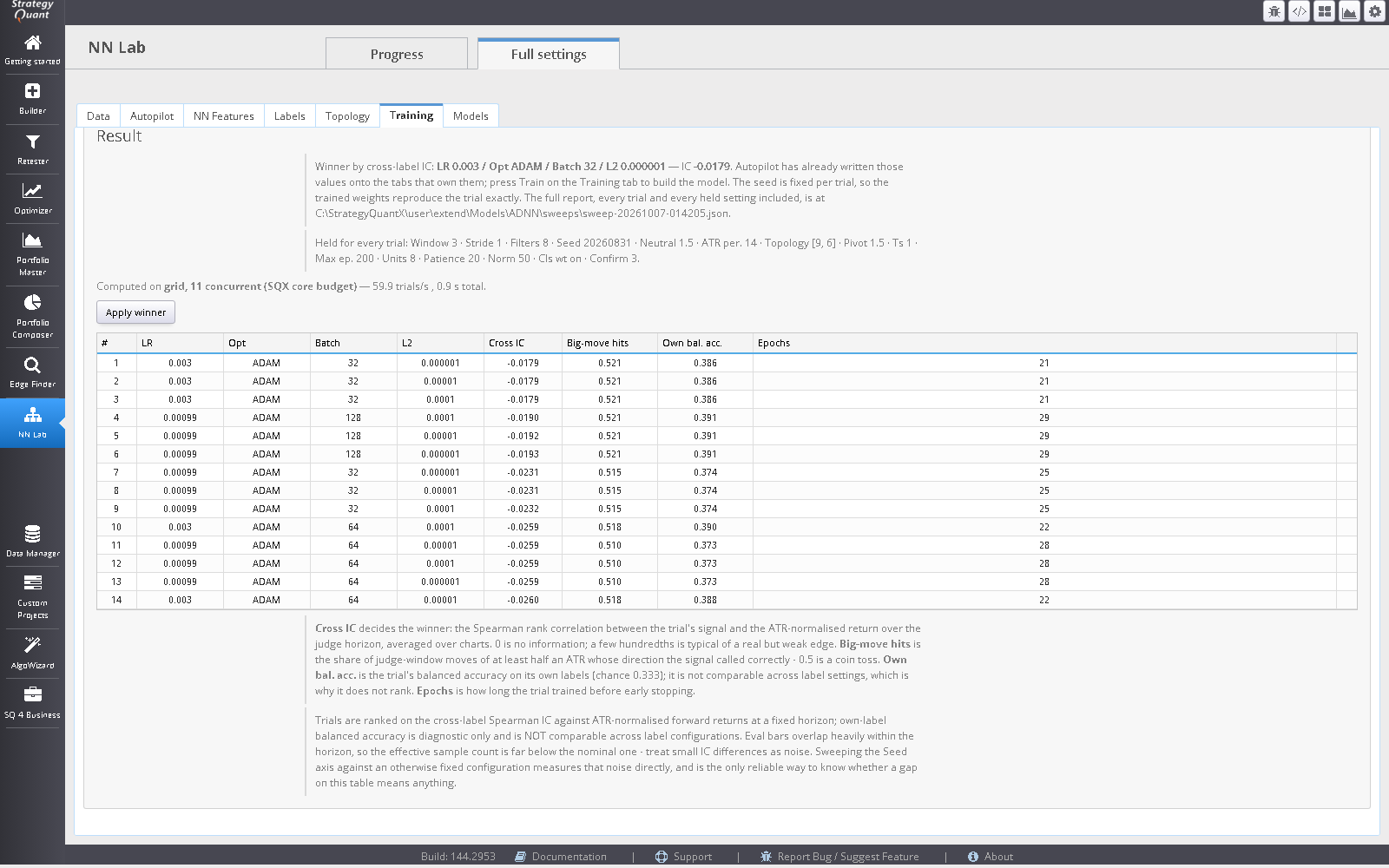
Whatever finishes stays applied; the winner is written onto the tabs that own the values, and you press Train to build the model. The seed is fixed per trial, so the trained weights reproduce the trial exactly.
How trials are judged
The search is a grid over topology (hidden shapes, timesteps, learning rate, optimiser) and over the label definition. Ranking label settings by their own accuracy would be circular: loosening the definition raises the score with no change in the model. Trials are therefore ranked by a fixed judge: the Spearman rank correlation (IC) between each model’s signal (P(long) − P(short)) and the ATR-normalised forward return over a fixed horizon, on the same bars for every trial. The judge window sits inside the trainable range and ends a full horizon before the reserved boundary, so the out-of-sample tail is untouched even by a forward return.
Label search axes include minimum pivot spacing; it is a manual axis and is not included in the Auto tune ladder. Each trial’s spacing is part of its label-cache key and saved configuration. The exploratory measurements behind the new defaults do not validate class balance or model quality.
The Search panel sets the Judge horizon (bars ahead) and the Judge ATR period. In the result:
- Cross IC
- Decides the winner. 0 is no information; a few hundredths is typical of a real but weak edge.
- Big-move hits
- The share of judge-window moves of at least half an ATR whose direction the signal called correctly. 0.5 is a coin toss.
- Own bal. acc.
- The trial’s balanced accuracy on its own labels (chance 0.333). A diagnostic only; it is not comparable across label settings, which is why it does not rank.
- Epochs
- How long the trial trained before early stopping.
Every trial is written to user\extend\Models\AWNN\sweeps\ (configuration, losses, scores, wall time), because a search that reports only its winner cannot be told apart from one that got lucky. Apply winner writes the values into the tabs; it is saved into the task the same way an edit on those tabs is. Reports accumulate until you delete them on the Models tab.
Signals
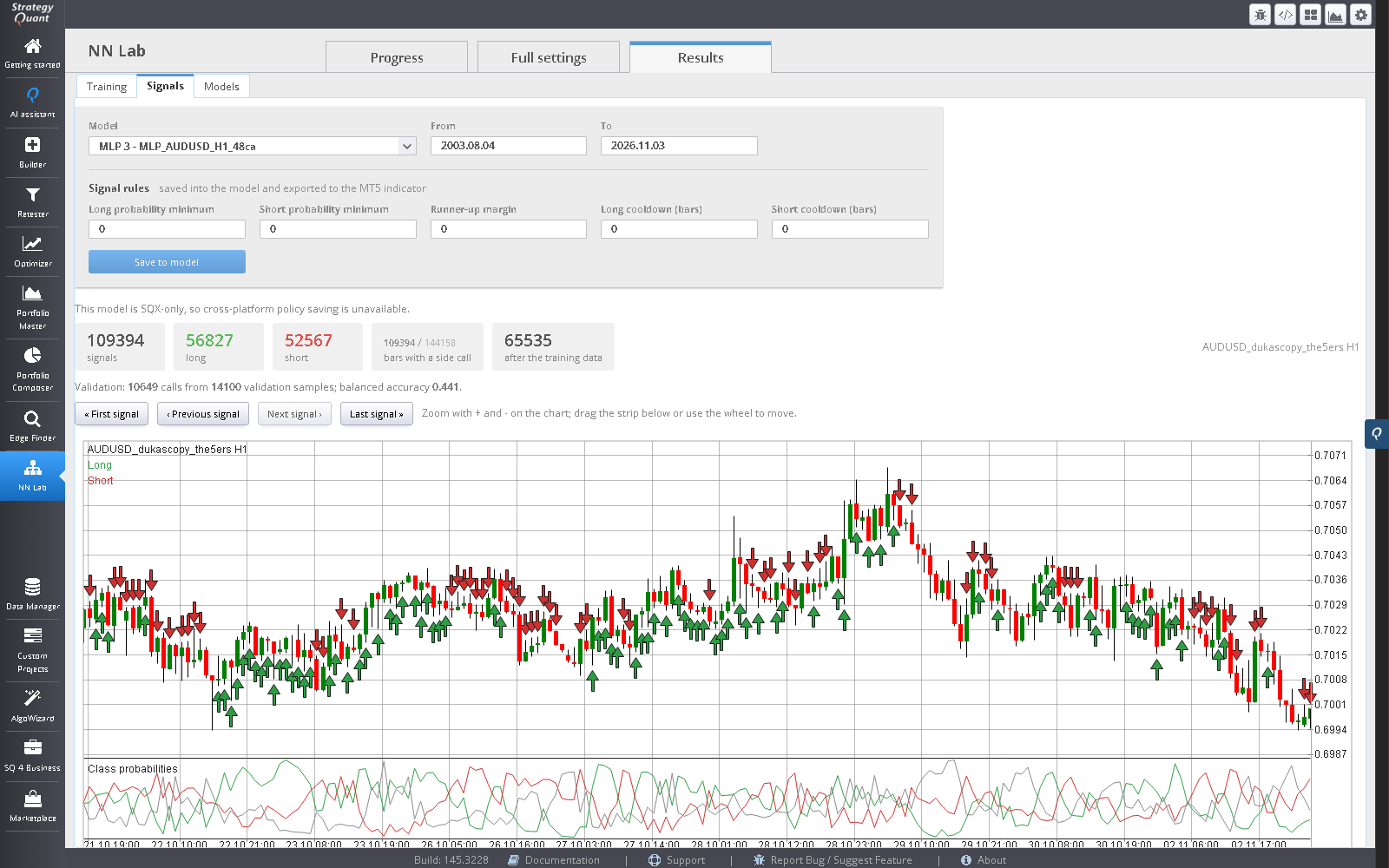
Pick a trained model to see the bars it calls long (green) or short (red) on the price chart, with the three class probabilities underneath: the same numbers the AW Neural Network block gives a strategy (PLong, PShort, PNeutral). You choose the chart (for a multi-chart model), the range, and how strong a call counts: the Show setting keeps only the strongest 2%, 5%, 10%, 25% or 50% of the model’s own calls (or every call), which is a confidence cut-off set relative to this model, because a weak network never reaches 0.45 and a sharp one sits near 0.9. Long calls are drawn as green arrows below the bar and short calls as red arrows above it. Buttons step to the first, previous, next and last signal. Nothing here is traded, so nothing here is profitable or not. If the network almost never favours a side on a range, that says the model has learned little to act on, not that the Builder cannot use it: a strategy filters on the probabilities.
Models
The Models tab lists every trained model; the Id column is the number a block’s ModelId takes. Click a model to inspect it: its inputs (built-ins by name, blocks by key and parameters, alternative data by column), the configuration it was trained from, the metrics, the file paths and its MetaTrader 5 state. The MetaTrader 5 and StrategyQuant X Builder panels above the detail deploy the model to each platform.
- Load settings into tabs writes that model’s configuration back onto the Features, Labels, Topology and Training tabs. Indicator blocks are listed for you to tick by hand, since they live in SQX’s blocks grid.
- Delete model removes the
.awnn, its.awnnmand the manifest entry. Strategies that use that ID then read 0 (neutral) until a model is trained into it again (see When there is no model). The ID is not given to a new model until you press Sync model list. - Models trained before input names were recorded show no names; retrain to record them.
The tab also holds the Jobs list (Refresh, Clear finished, Cancel for a ticked running job) and the Search reports list (Delete all reports).
Model IDs and names
Upgrading from 1.1.3: restart SQX once after updating, so the changed block sources load; after that, no compile and no restart is needed. A project whose Blocks configuration was saved under 1.1.3 holds a copy of the old dropdown: reset its NN blocks once. Strategies and templates that name a model keep working, because they store the same number.
An NN block takes a model by its ID: a plain number you type into the block’s ModelId as a Fixed value. There is no list of models inside the block, so a model you have just trained, retrained or deleted never changes a block file. No sync, no compile and no restart stands between training a model and using it. The readable name is looked up from the ID:
- Name for ID. On the Models tab, type a number into the Name for ID box. NN Lab shows the model it stands for, for example
MLP_XAUUSD_H4_ab12 (MLP, ID 21, uid ab12), or says that no model has that ID (a block with that ID outputs neutral). The same names are in the Name column of the Models list, next to the Id. - Reading an ID inside StrategyQuant X. The help text of each NN block explains how to read the ID: open NN Lab, Models tab, find the ID, and read the name beside it. The Builder shows the number, not the name; the name is one lookup away in NN Lab.
The panel Model IDs and names on the Models tab also has Sync model list and Preview. Sync is optional housekeeping, not a step between training and using a model:
- Sync model list gives every model that has none its uid, refreshes the list of IDs and names (
modellist.jsonin the models folder), and frees the IDs of models you deleted so a new model can take them. Until you sync, a deleted model’s ID is kept back, so a strategy that still names it cannot silently meet a different model. It never rewrites a block, and the result line lists every ID with its name. Preview shows what a sync would do without writing anything. - Training, deleting and Deploy to MetaTrader 5 take effect at once: NN Lab refreshes the models the blocks have cached when it writes or deletes a model, and the MetaTrader 5 indicators read the deployed file themselves.
- A saved strategy stores the ID, not the name. Renaming or retraining does not change which model the strategy reads, because a new model always gets a new ID.
- Always set
ModelIdto a Fixed value. The builder range ofModelIdis 0 to 0, so an unfixed block generates 0 rather than searching across your models. 0 is the block default: it holds a model only if one was trained before IDs existed, and otherwise the block outputs neutral. It is not a threshold for the builder to search. - Models trained by an older version are given a uid and rewritten in the current file format (v5 for the SQX file, v2 for the MetaTrader 5 file) the first time you sync. An older install cannot read the rewritten files; the originals are copied first to a
backup-pre-v5folder in the models folder. A legacy model the current version cannot read at all is left out of the list and not changed, with a warning in the sync result: retrain it (it gets a new ID) or leave it out. - Legacy models of different families that shared a number appear together in the sync result; the block’s
NetworkTypedecides which family’s file is read. New models never share an ID.
Using a model in a strategy
In the Builder
A trained model is an ordinary indicator, Neural Network (NN(NetworkType, ModelId)), whose Signal output is P(long) − P(short) in −1…1. Eight condition blocks read it: Signal is higher than Level, is lower than Level, crosses above and below Level, is rising, is falling, changes up and changes down. All take a ModelId, the ID of your model, as a fixed value.
Deploy to Builder (Models tab, StrategyQuant X Builder panel) does this for you. Pick the project, the Build task and the model (the model open in the table is the default) and press the button. It writes only the Building blocks page of that task: the Neural Network indicator and its eight condition blocks are ticked, and on each, Model Id is set to the model’s ID and Network type to its family, both as fixed values. Blocks that were already ticked stay ticked, nothing is unticked, and no other block and no other part of the task (data, trading engine, ranking and so on) is changed. A block the task does not list yet is reported, not invented: open that task’s Building blocks page once, then deploy again. The Builder window showing that project is reloaded so the page shows the change, and the project must not be running. Level stays with the builder, which searches the threshold, never the network. Run it again after training another model to point the blocks at it; it never unticks anything.
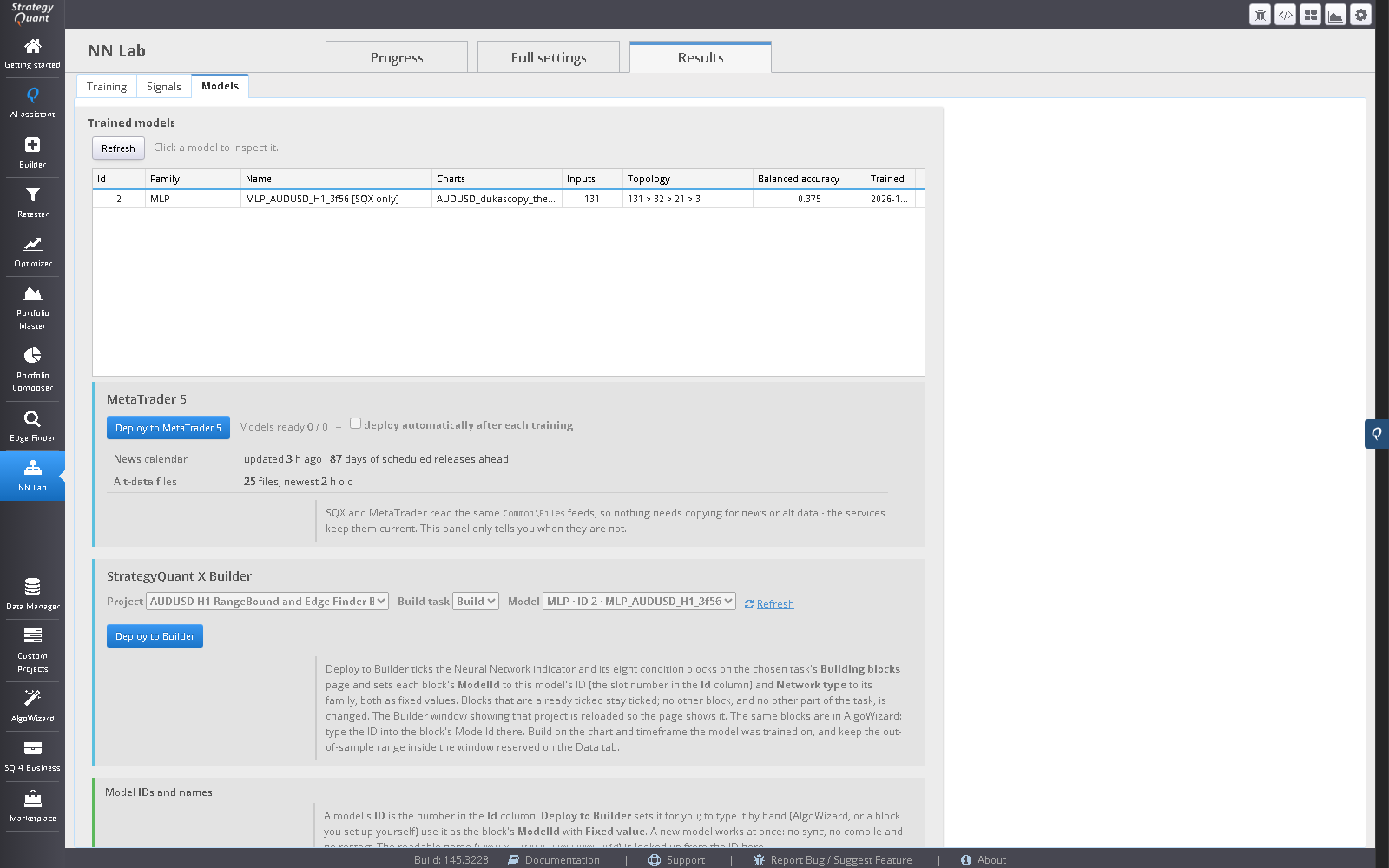
To do it by hand instead: on the Building blocks tab tick the NN blocks, open the block’s parameters (the pencil), set Model Id to Fixed value and type the ID (the Id column on the Models tab, for example 21), and pick the family in Network type. The Name for ID box on the Models tab tells you which model a number stands for.
In AlgoWizard
Deploy to Builder does not touch AlgoWizard. Add a rule, pick the Neural Network indicator (or one of its condition blocks), type the model’s ID in ModelId, and compare Signal with a level. A level of 0.5 demands direction and conviction at once, since |Signal| is at most 1 − P(neutral).
Rules for a meaningful result
- Build on the charts the model was trained on (for a pooled model, any of its charts).
- Keep the build’s out-of-sample range inside the window reserved on the Data tab.
- The block reads the model with that ID from
user\extend\Models\AWNN\on this installation; the file is named<Family>_<ID>.awnn, for exampleMLP_2.awnn.
When there is no model
If the ID has no readable model, or while the block is still warming up, the indicator’s outputs stay 0 (neutral). That covers an ID that was never trained, an ID outside 1 to 999, a deleted model, a damaged file and, while slots.tsv (written when a model is trained, and by Sync model list) lists a uid for that ID, a file whose uid is not the one recorded. The block logs the reason once and never falls back to untrained weights.
Zero is a value, not an error, so a rule is evaluated on it like on any other number: Signal is higher than 0.4 is false, but Signal is lower than 0.4 is true on every bar. A strategy that names an ID with no model can therefore still trade, on a signal that carries no information. No model ships with the product, so until you have trained and saved a model in NN Lab, every ID is empty. If a build behaves oddly around an NN block, check the ID in ModelId first.
Deploying to MetaTrader 5
On the Models tab, in the MetaTrader 5 panel, press Deploy to MetaTrader 5. NN Lab copies the .awnnm files it wrote next to the .awnn files into the Common folder shared by every terminal on the computer (%APPDATA%\MetaQuotes\Terminal\Common\Files\AWNN, created if absent). There is no terminal to pick, no MetaEditor, no source and nothing to compile: the shipped indicators (AWNeuralNetworkMLP, CONV, LSTM and CONVLSTM) load the file at run time and re-read it when its modification date changes, checked on each new bar. Identical files are skipped and writes are staged then renamed, so a chart never reads a half-written file.
- The panel shows each model’s state: ready, stale (the deployed file differs) or not deployed, by byte comparison.
- Deploy automatically after each training runs the same copy when a job finishes. The switch is stored in
Models\AWNN\mt5.json. - A model marked SQX only has no
.awnnm: one of its indicator inputs has no MetaTrader template, and NN Lab refuses to degrade the model rather than ship something different. - The panel also reports the shared feeds a model may read: the News calendar (its age and how many days of scheduled releases lie ahead) and the alt-data files. Nothing is copied for these; SQX and MT5 read the same files, and the panel only tells you when they are not current.
An exported EA calls the NN indicator with the same ID, as the integer input InpModelId; MetaTrader 5 never sees the model’s name (the indicator’s short name reads AW NN-MLP(21): look the number up in NN Lab). Deploy the model before you attach the EA: with no readable .awnnm for that ID the indicator emits zeros and the Experts log says why. After retraining, deploy again; the indicator picks the new file up on its next bar.
Files
| File | Where | What |
|---|---|---|
<Family>_<ID>.awnn | user\extend\Models\AWNN\ | The model SQX blocks read. The ID is the number the blocks store; the model’s name and unique ID are kept in the file header and on the Models tab. |
<Family>_<ID>.awnnm | Same folder, then Common\Files\AWNN | The model MT5 indicators read. |
sweeps\ | user\extend\Models\AWNN\ | Autopilot and ranking reports. |
mt5.json | user\extend\Models\AWNN\ | The auto-deploy switch. |
Limits
- Prediction is not profit. NN Lab never sees a trade. A well-scored model can still build a poor strategy, and a weakly scored one can build a good one.
- No reserved-range score. By design. The out-of-sample verdict is SQX’s, from the strategies built on the model.
- Plain models only. Four families and three optimisers. There is no triple-barrier labelling or exotic architecture; robustness checks in SQX judge the strategy.
- Labels use future bars by definition. A pivot is only confirmed after later bars, which is why the purge exists and why the signal in a live strategy is a probability and not a known pivot.
- The model is tied to its inputs. Change a feature definition or the normalisation lookback and the model no longer matches; retrain.
Troubleshooting
| Symptom | Cause and fix |
|---|---|
| A strategy using an NN model prints a model-file message and shows zeros | The MT5 indicator reads Common\Files\AWNN\<Family>_<ID>.awnnm. Press Deploy to MetaTrader 5 on the Models tab, or copy the file by hand. The Experts log names the exact problem: file missing, damaged, unsupported format version, or a feature indicator (Sq*) not installed in the terminal. The indicator emits zeros until it is fixed. |
| “The MetaTrader 5 Common folder was not found” | Start MetaTrader 5 once, then press Deploy again. |
| A block reads neutral for every bar | There is no readable model with that ID for that family. Type the ID into Name for ID on the Models tab: it names the model, or says that no model has that ID. Check Network type too, because the family is part of the file name. See When there is no model. |
| I do not see my new model’s name in the Builder | The Builder shows only the ID, a number. Use Deploy to Builder, or read the ID in the Id column on the Models tab (or type a number into Name for ID to see its name) and type it into ModelId as a Fixed value. A new model needs no sync, compile or restart. |
| Deploy to Builder says the task does not list the NN blocks | The task’s Building blocks configuration was saved before the NN blocks were available in this SQX. Open the task’s Building blocks page once so SQX lists them (the NN blocks must be compiled in this install), then press Deploy to Builder again. Nothing is written in the meantime. |
| “Every trial was skipped” | Too few samples survived each label configuration’s purge. Use a longer range, or labels that resolve sooner. |
| Loss jumps or is NaN | With Adam or SGD, the learning rate is too high. Rprop has no learning rate. |
| The model scores well in training and badly in a build | Compare the training and validation loss (memorising); retrain with another seed; check that the build uses the same chart and that its out-of-sample range sits inside the reserved window. |
| The News panel says the calendar is missing | Start the AWNewsFeed service in MetaTrader (Navigator → Services) or import the calendar. Models and blocks that use news read “unavailable” until then. |
| The tab is blank or shows old settings after an update | Restart SQX. Plugins load only at start. |